Put WooCommerce customisations that change how the store behaves (checkout fields, shipping and pricing rules, order emails, integrations) in a small custom plugin. Keep the child theme's functions.php for code that only exists to support that theme's look, and don't put anything in the parent theme's functions.php at all, because a theme update replaces that file. When a snippet could go either way, ask whether the store would still need it after a redesign. If it would, it goes in the plugin.
Why custom code goes missing after an update
The most common cause is editing files you don't own. Code added to the parent theme's functions.php, or pasted straight into WooCommerce's own plugin files, is overwritten the next time that theme or plugin updates. This is what people usually mean when they search for "woocommerce custom code lost after update". The fix WordPress offers is a child theme: the WordPress Theme Handbook on child themes describes it as a theme that inherits from a parent and lets you modify it while keeping your changes when the parent is updated.
Want custom code that survives updates? I write it as a small plugin from the start, with the hooks documented for whoever comes next. That is my custom WooCommerce development; a short brief is enough to start.
A child theme doesn't protect against the second cause. Anything in a theme's functions.php only runs while that theme is active. Switch themes for a redesign and every hook in that file stops running, with no error to warn you. The checkout loses its extra field, orders stop carrying the delivery date, and the ERP stops receiving new orders, and nobody notices until a client's warehouse asks where the orders went.
For an agency this is a real exposure, because the theme switch usually happens during your own redesign project, often on code written by a developer who left long before you took the client on.
What still belongs in the child theme
A WooCommerce customisation in a child theme is fine when the code is genuinely about presentation and has no meaning without that theme. That covers loading the child theme's stylesheet and scripts, registering the menus and image sizes the theme's templates use, and small markup changes to how product and category pages are laid out in that particular design.
Template overrides also live here. These are copies of WooCommerce template files placed in a woocommerce folder inside the child theme, which WooCommerce then uses instead of its own. They're legitimate, but each one is a frozen copy of a file WooCommerce keeps changing. When the original template changes, the copy doesn't, so someone has to compare and update each override by hand after WooCommerce updates. My preference is to keep overrides few and to use hooks instead where a hook exists, because a hook usually keeps working when the template around it changes.
What belongs in a custom plugin
Store logic goes here: extra checkout fields, their validation and saving them to the order; shipping, payment and tax rules; price adjustments, minimum order logic, custom order statuses and the emails that go with them; changes to the admin order screen; REST endpoints, webhooks, scheduled tasks and anything that talks to an ERP, CRM or warehouse system.
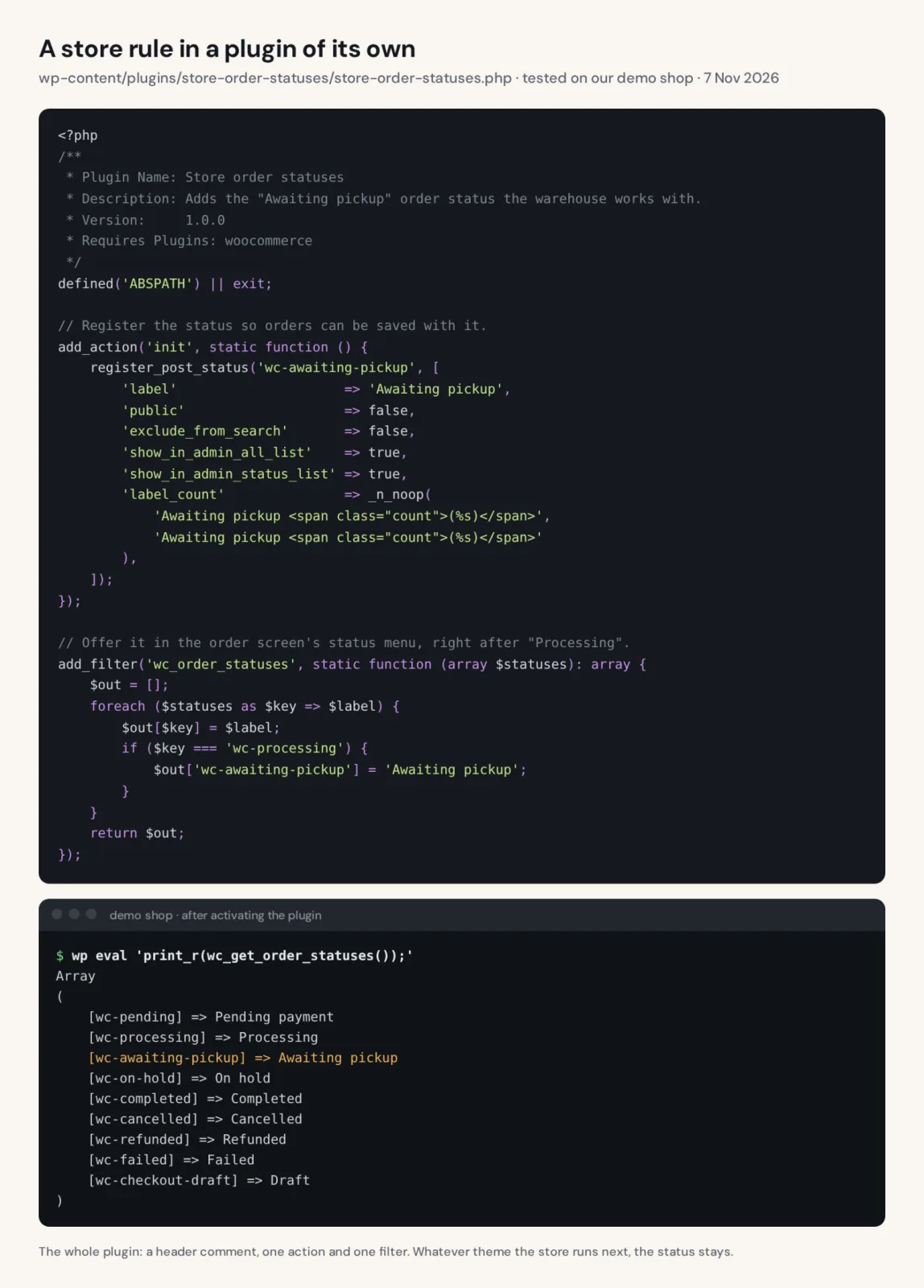
The effort involved is small. As the Plugin Basics page in the WordPress Plugin Handbook explains, the minimum is a PHP file with a header comment that includes a plugin name, placed in its own folder under wp-content/plugins. For a handful of snippets, that header and folder are the only extra work compared with functions.php.
In return, the code survives theme changes. It can be deactivated on its own when you're chasing a conflict, which you can't do with one block inside functions.php. It sits in its own folder, so it goes into version control cleanly and can be handed to another developer as one thing with one purpose. And when someone opens it in two years, the file name tells them what it is, instead of the logic being buried between a font enqueue and a menu registration.
There's one variation worth knowing. A must-use plugin is a PHP file placed in wp-content/mu-plugins. According to the WordPress handbook page on must-use plugins, WordPress enables these automatically, they don't appear with an option to deactivate on the normal plugins screen, and the way to turn one off is to remove the file. I use that for code the store shouldn't run without, such as a payment-related rule a client's staff must not be able to switch off by accident. The same page notes that WordPress only loads files sitting directly in that folder, not in subfolders, so a larger plugin there needs a small loader file.
A test for the grey areas
Some code doesn't sort itself neatly. Removing a product tab, renaming the "Add to cart" button, hiding a field: is that design or behaviour?
Asking about the redesign sorts most of these. If the client wants the reviews tab gone no matter what the site looks like, that's a business decision and it goes in the plugin. If the tab is only removed because the new design shows reviews somewhere else on the page, it belongs with the theme that made that choice.
When I still can't decide, I put it in the plugin. A presentation snippet sitting in a plugin does no harm and is easy to move later, while store logic left in a theme can stop working without a single error message the day the theme changes.
Moving existing code out of functions.php
If you've inherited a store where everything lives in functions.php, moving it is worth doing, but it touches checkout. Do all of the work below on a staging copy, never by editing files on the live store, because a mistake here can take the whole site down with a fatal error.
- Make a staging copy of the store with a recent database, and take a full backup of the live files and database before anything changes.
- Read the child theme's functions.php and every file it includes. List each snippet and what it does, and sort the list into presentation and behaviour. Note any hard-coded API keys or passwords; they should move into configuration rather than code, and if the theme files have been passed around between developers, it's sensible to rotate them.
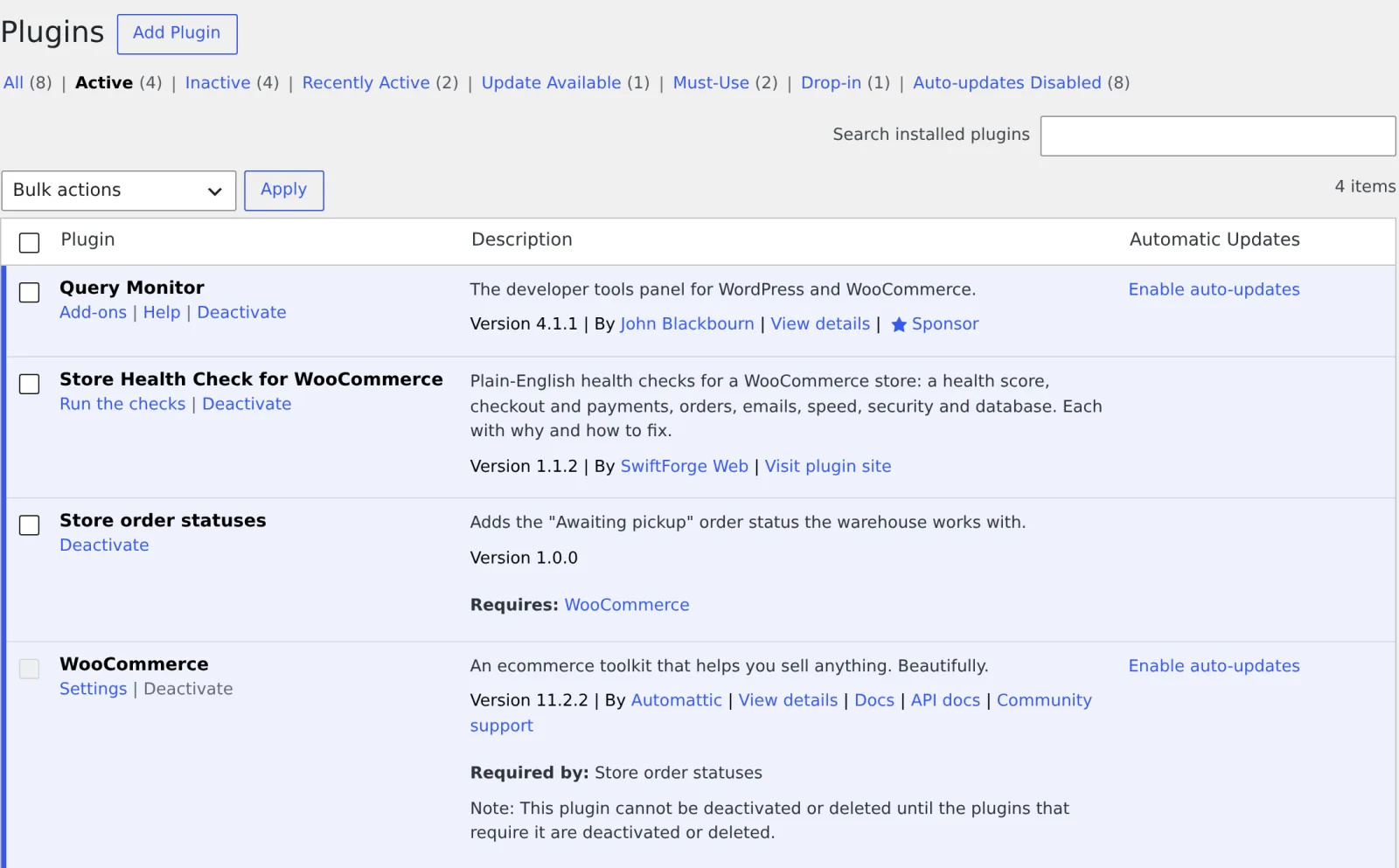
- Create a plugin folder with a main file and a header comment, with a name that says what the plugin does for the store.
- Move the behaviour snippets into the plugin and delete them from functions.php in the same change. If a named function ends up defined in both places, PHP stops with a "cannot redeclare" fatal error, which on a live site means a broken store until the file is fixed. If the code is a hook with an anonymous function, it can end up running twice, which can mean duplicate emails or the same order sent to the ERP twice.
- Check load order. WordPress loads plugins before the theme's functions.php, so moved code that depends on something the theme sets up may need to be attached to a later hook such as after_setup_theme or init, both of which fire after the theme has loaded.
- Test on staging: place test orders through every payment and shipping method, check that custom fields are saved on the order, that emails arrive once, and that the integration's receiving end (in its sandbox, if it has one) gets what it expects. Make sure staging isn't connected to the live payment gateway or the client's real ERP before you place those orders.
- Deploy the new plugin and the trimmed functions.php together at a quiet time, activate the plugin straight away, and keep the previous files and the backup ready to put back. To check checkout on the live store, use the payment gateway's test mode or a payment method visible only to admins if one is available. If the only option is a real order, agree it with the client first, warn whoever handles fulfilment and the ERP, and cancel and refund it afterwards.
What to ask for when someone else writes it
If you hand WooCommerce work to a freelancer or a white-label developer, say where the code goes in the brief. Ask for store logic in a named custom plugin, handed over to you with a short note on what each hook does and why. Ask for the plugin header to carry your agency's name or the client's, not the developer's.
Where the code lives also decides how painful it is when a developer stops answering. Snippets scattered through a theme mean the next person has to reverse-engineer the whole file before they can change one rule; a single plugin with a clear purpose and a written note gives them a place to start. It belongs on the list of questions to ask a white-label developer before the first brief.
When agencies send me custom WooCommerce plugin and checkout work, I build it this way: store logic in its own plugin, the child theme kept for presentation, the work done on staging and handed over as the code plus a short written summary, with my name nowhere in the deliverables, code comments, commit authors or file metadata.
Working through this on a client's store? Send me the URL and what you've found so far, and I'll tell you what I would check first and whether it needs more than a checklist, NDA first if you want one. Send me the URL.