Give the developer a staging copy of the store to work on, not the live site, and give them their own accounts rather than the client's login. If they really need something on the live store, create an account with the narrowest role that will do the job, keep it only for as long as the job lasts, and decide in advance who moves the finished work onto the live site. The client's own logins never change hands, and when the job ends you remove the developer's accounts and keys one at a time.
The same approach works whether you need to give a developer access to a WooCommerce site or a PrestaShop one. The platform details differ, and so do the places it tends to go wrong.
Start with a staging copy
A staging site is a private copy of the store, with the same files and database, running on a separate address that customers never see. The developer can break it, fix it and break it again while the live store keeps taking orders.
Setting up WooCommerce staging for a developer is sometimes a single option in the host's control panel. Where the host doesn't offer it, the copy is made by hand: the files, a database export, and a replacement of the old domain with the new one. WordPress stores the site address in the database, often inside serialised data (PHP's way of packing settings into one text field, with each value's length recorded), so a plain text replace in a SQL file can corrupt those settings. WP-CLI's search-replace command handles serialised data and is the tool I'd use.
A PrestaShop staging site is made the same way, but the domain is stored in more than one place: the configuration, the shop URL settings in the database (which keep a normal and an SSL domain), and a separate entry for each shop on a multistore install. Caches can also hold the old address. If one of these is missed, the copy redirects back to the live domain and the developer ends up clicking around the real store without realising it. Before anyone starts work, log in to the staging back office and check that every page you open stays on the staging address.
Put the copy on a neutral subdomain under your agency's or the client's control. When I work white-label, my name appears nowhere, staging URLs included.
What to switch off on the copy before anyone logs in
A staging copy is a working store. Left as it is, it can charge cards, email customers and push data to other systems. Go through this before you send the login:
Want a developer who works this way? I start on a staging copy under your agency's or the client's domain, and my name appears nowhere, staging URLs included. How I work has the rest, and a short brief is enough to begin.
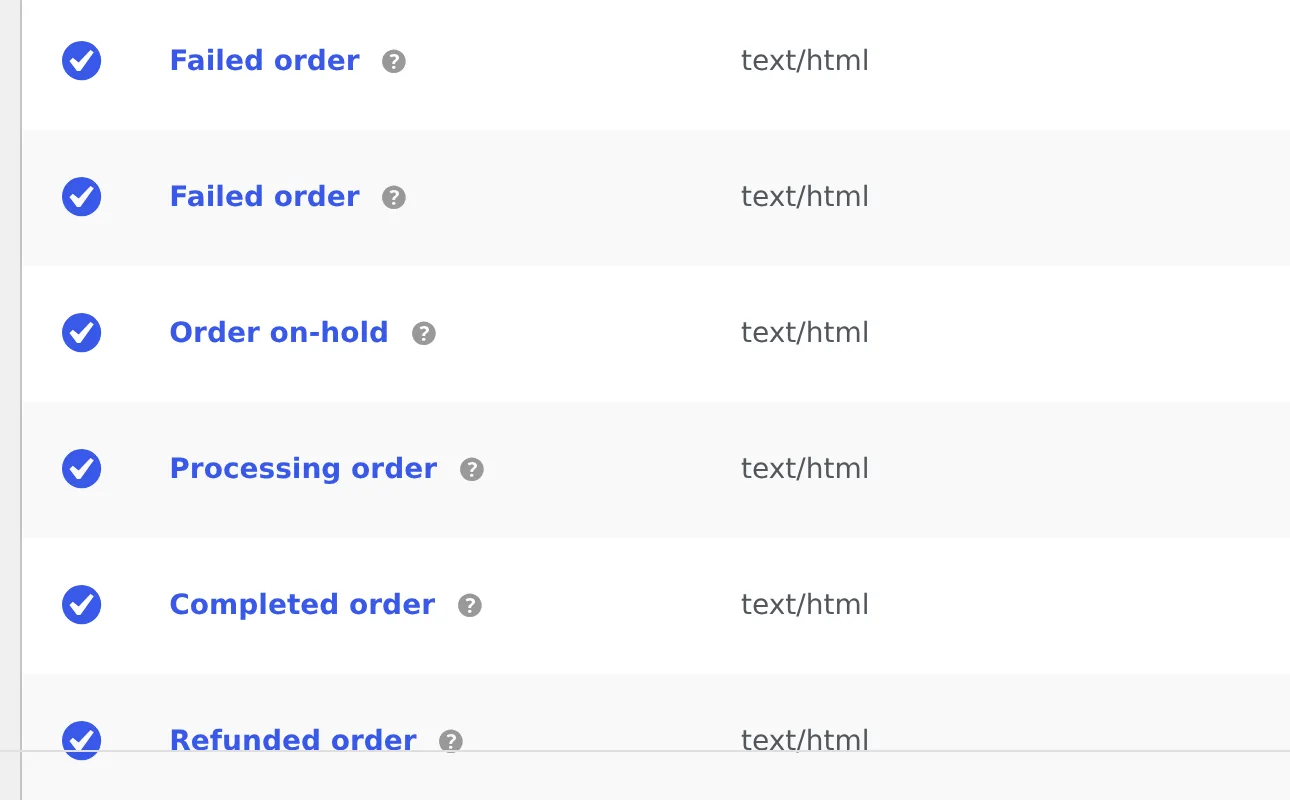
- Put every payment gateway into test or sandbox mode, or disable it. A copied live API key is still a live key. Check the gateway's own dashboard too: webhooks (automatic notifications the payment provider sends to the store) are configured in the client's payment account, and switching the copy to test mode doesn't change anything there.
- On WooCommerce, look at the store's own webhooks in its advanced settings. If the live store sends order data to another system, the copy will send the same data from test orders.
- Stop outgoing email to customers, either with a mail setting that captures messages instead of delivering them or by turning transactional email off. Otherwise a test order or a bulk status change can send real order emails to real people.
- Disable scheduled tasks and integrations: server cron jobs, WooCommerce's scheduled actions, ERP and CRM syncs, stock feeds, marketplace connectors. A copy that syncs stock back to the client's ERP can overwrite live figures.
- Turn off any shipping or label integration that books real collections.
- Password-protect the whole copy at the server level, so it can't be indexed and compete with the live store. A "discourage search engines" setting on its own isn't enough.
- Check that it held. Place a test order on the copy and confirm that no email went out, no payment reached the live account and nothing turned up in the ERP or CRM.
Keep a list of what you switched off and hand it to whoever deploys. If settings are ever moved from staging to live, that list shows which ones must stay as they are on the live store.
Customer data on a staging copy
A full copy contains every customer name, address, email and order the client has. A developer who doesn't need real customer records shouldn't be handed them, and if the client has privacy obligations of their own, they are the ones to ask what's allowed.
For most jobs (theme work, a checkout change, a performance fix, a module upgrade), anonymised customer and order data works just as well. Replace names, emails, phone numbers and addresses with fake values before you share the copy. Some jobs do need realistic data, such as tracing why a particular order failed to sync. In that case, say so in the brief and keep the copy behind the password. Either way, the NDA should be signed before the brief, not after the developer has the database.
When the developer really does need the live admin
Sometimes staging isn't enough. A payment provider only behaves properly on the real domain, a bug only shows up with live traffic, or the hosting has no room for a copy. I work on a client's live site only when there is no other option, and when that happens, the access should be built for the job.
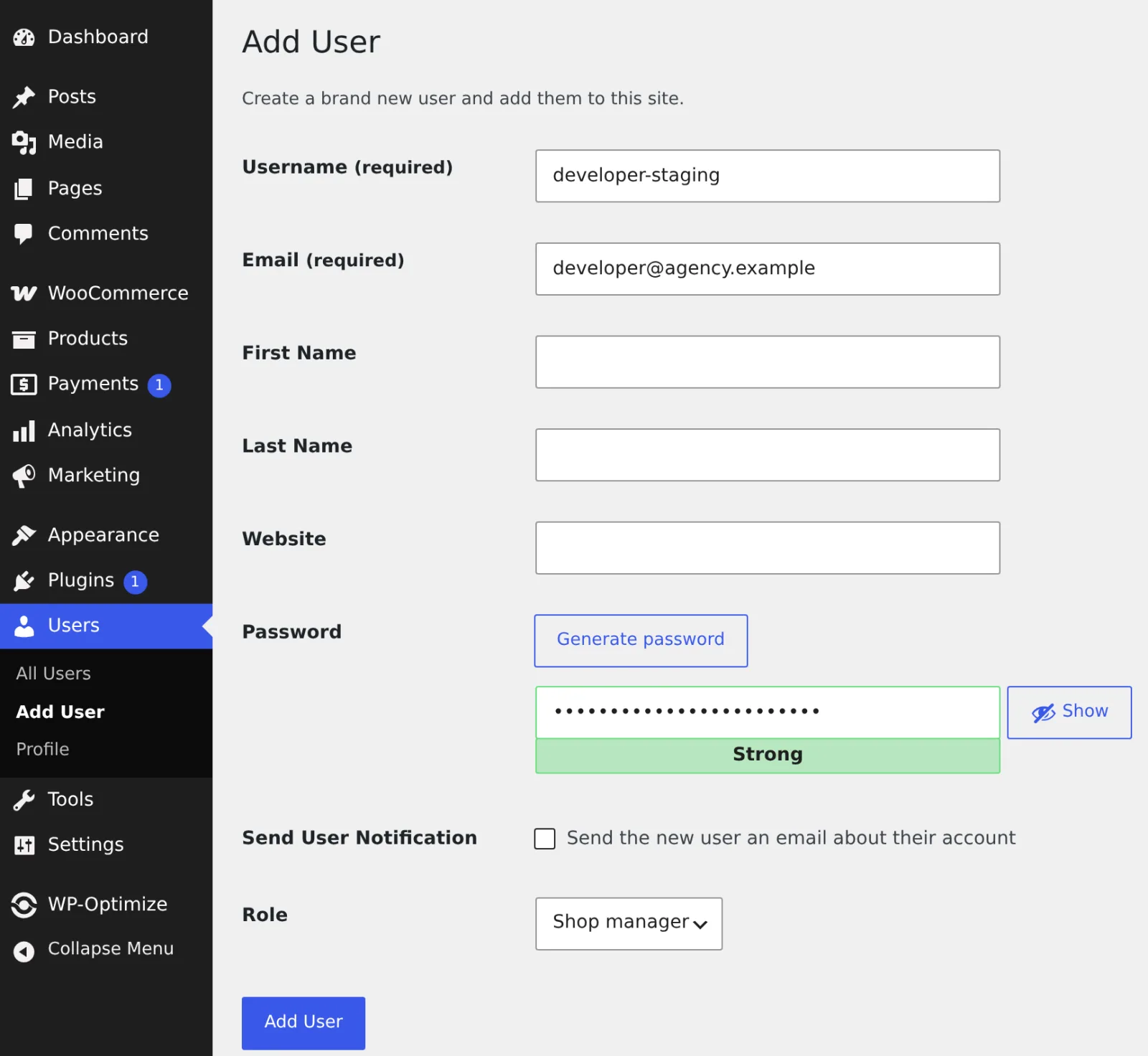
To share admin access with a developer safely, create a new account for them rather than passing on the client's login or your agency's main account. Use an email address you control, so you can reset or delete the account without touching anyone else's access. On WordPress this takes a minute in the Users screen, or one command with WP-CLI's user create, which lets you set the role at the same time.
In WordPress, the role decides what the account can do. Administrator reaches everything, including plugins, themes and other users, as the WordPress documentation on roles and capabilities describes. WooCommerce adds its own Shop Manager role for running the shop. Check what it can and can't do on the client's install before choosing it, because plugins can add or change capabilities. If the job involves plugins or theme files, the developer will usually need Administrator, and that is a good reason to do the work on staging instead.
If the developer only needs to reach the store through the API, for an integration or a sync, an application password is a better fit than a full login. Application passwords are created per user on the user's profile screen, work only for API requests, and can be revoked one at a time.
In PrestaShop, back-office users are employees, and each employee has a profile whose permissions decide which parts of the back office they reach. How finely those permissions can be set depends on the version and the modules installed, so open the permissions screen on the client's store and build a profile there for the job, rather than handing over SuperAdmin. If the install offers two-factor login, through the core or a module, switch it on for that account.
On either platform, remove the account the day the job ends.
Server, SFTP and database access
Admin access and server access are separate decisions. A developer working on code usually needs the files and sometimes the database. In my view they rarely need the hosting control panel, the domain registrar or the DNS, and keeping those out of the job means there is less to check and less to revoke afterwards.
Ask the host for a separate SFTP or SSH user, limited to the staging directory if possible. Key-based login is better than a shared password, because you can revoke one key without changing access for anyone else. For the database, a separate user with rights only on the staging database covers most work. The client's hosting account login stays with the client or with you. If the host can't create a separate user, the developer can send the code to you to upload, which is slower but leaves the hosting login where it was.
Getting the work from staging onto the live store
Never copy the staging database over the live one. Between the day the copy was made and the day the work is finished, the live store took orders, registered customers and changed stock. Overwriting the live database wipes all of that, and those orders come back only if a backup from the right moment exists.
Move code and database changes separately. Code (a custom plugin, a module, theme files) goes across as files or through version control. Settings changed in the admin are repeated by hand on the live site, from the developer's written notes. That is one reason I hand over the code plus a short written summary at the end of every job: someone has to know exactly what changed and where. Database changes made by code, such as a new table or field, should run from the plugin's or module's own install routine, not from a SQL dump.
Decide in the brief who deploys. Some agencies deploy themselves and the developer only touches staging. Others let the developer deploy during an agreed window, with a fresh backup taken right before. Either is fine, as long as the brief names a person and a time. If you're vetting a new developer, ask how they deploy before you send anything; it's one of the questions to ask a white-label developer before the first brief.
Closing access when the job is done
White-label developer access should have an end date. When the work is live and checked, run through this:
- Delete the developer's admin account on the live store, or reduce its role if a retainer continues.
- Remove their SFTP, SSH and database users, or revoke their key.
- Revoke any API key or application password created for the job, and check that no integration was set up to depend on it.
- Delete the staging copy, or keep it password-protected with anonymised data if you'll need it again.
- Make sure the code, the written summary and any credentials the developer created are in your hands.
That last point overlaps with ownership and handover, which are easier to settle before work starts. I've written about both: who owns the code when a white-label developer builds it, and what a white-label developer should hand back when the job is done.
If the store came to you from another agency, run the same checklist on accounts you didn't create. Any admin user, API key or SFTP login nobody can explain is a candidate for removal, but check first that an integration isn't using it, because revoking a key a sync depends on stops the sync. I cover the rest of that first look in what to do when you've inherited a PrestaShop client.
Working through this on a client's store? Send me the URL and what you've found so far, and I'll tell you what I would check first and whether it needs more than a checklist, NDA first if you want one. Send me the URL.