Use the PrestaShop upgrade assistant when the store is close to stock: a theme and modules that have releases for the target version, an empty override folder and core files that match a clean copy. Upgrade PrestaShop manually when the store carries customisations, or when you inherited it and nobody can tell you what was changed. Either way, the first run happens on a staging copy, not on the client's live store.
You only find out which kind of store you have by opening a copy of it and looking, so I'd make that look the first piece of work and choose the route afterwards.
The module, and what to read before using it
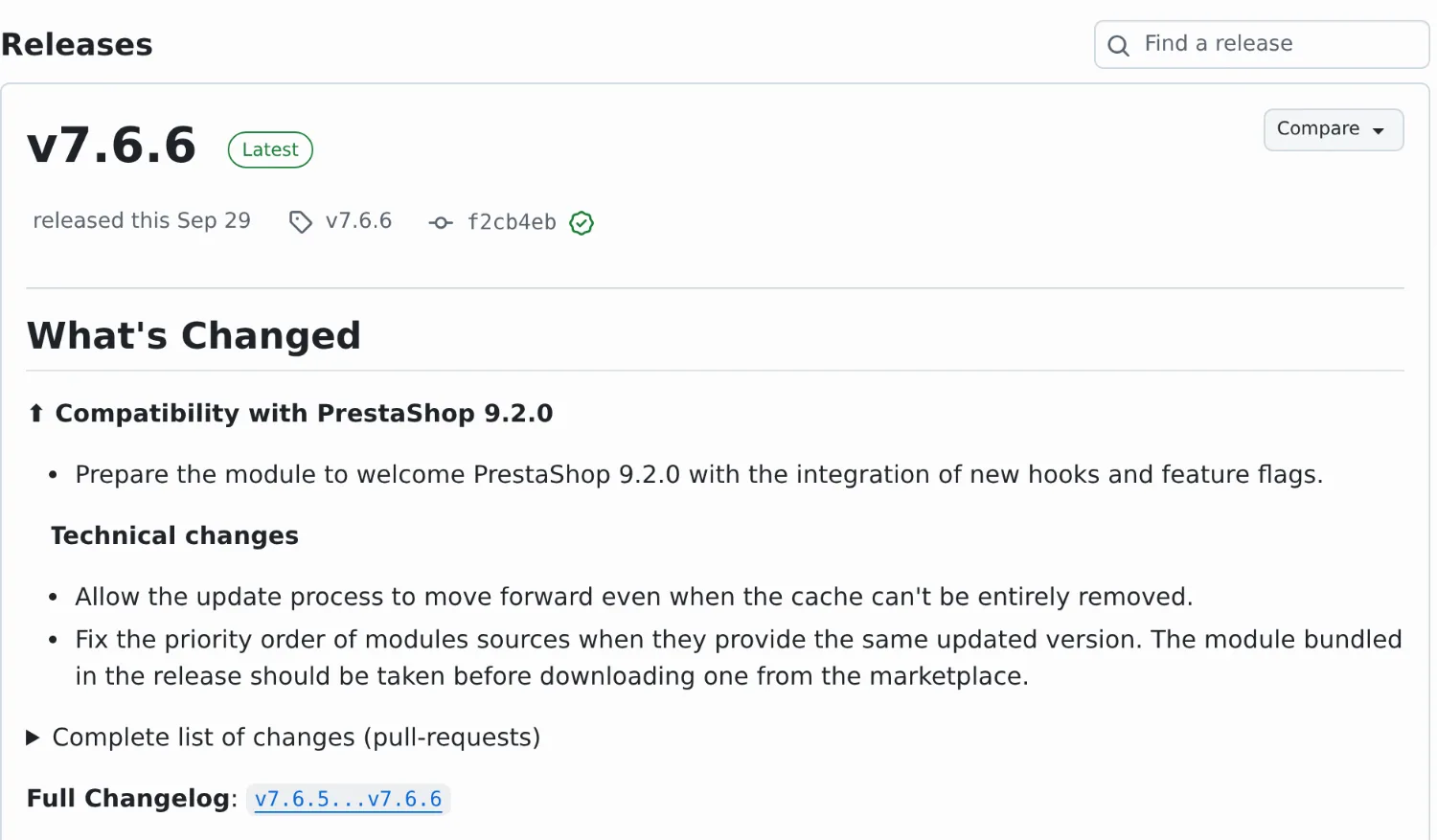
By the assistant I mean PrestaShop's official upgrade module, autoupgrade. Its code, releases and issues are public in the PrestaShop/autoupgrade repository on GitHub, which is where you end up if you search for prestashop update assistant github. Before using it on a client's store, read the documentation for the release you are about to install: which versions it upgrades from and to, what it needs from the server, and what it does or doesn't back up. Check those against the release you actually have rather than what you remember from a previous project.
Not sure which way this store should go? Send me the version, the module list and whatever has been changed in core, and I'll tell you whether the assistant is safe or the store needs a manual upgrade. Send me the details.
People also search for a prestashop upgrade and migrate tool when the job is really two jobs: a version upgrade and a move to new hosting or another platform. I'd do them one at a time, so that when something breaks you know which change caused it.
The inventory that decides it
On a staging copy, go through these before picking a route:
- The theme. Who maintains it, and is there a release for the target version?
- Every third-party module, checked with its vendor for a compatible release. A module that throws a fatal error on the new version can take the back office down, and with it anything you planned to fix through the browser.
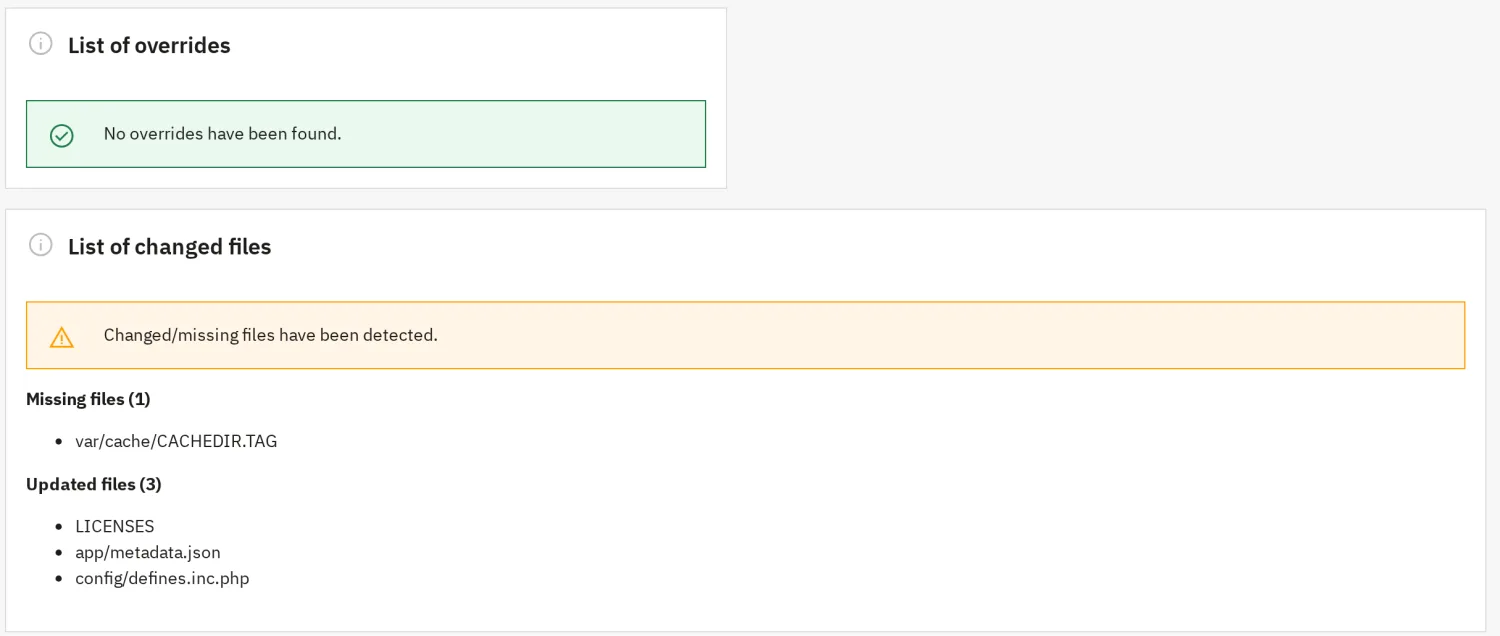
- The override folder. Empty is what you're hoping to find.
- Core files compared with a clean copy of the release the store runs now, to find edits nobody documented.
- The server's PHP version, against the target version's system requirements in the PrestaShop developer documentation.
If all of that comes back clean, I'd use the assistant, first on staging and then on live. You still want your own server-level backup (the full set of files plus a database dump) whatever the module offers, because if the back office stops loading you'll be restoring from the server.
Why customisations point to a manual upgrade
Every PrestaShop upgrade does the same core work, whichever route you take: the new release's files go in, then the database upgrade runs (scripts that change the tables to what the new version expects). The prestashop upgrade module handles that core work. Working out what the store's custom code does, and whether it still fits the new core, is a separate job that no tool does for you.
An override is a file in the override folder that replaces part of a PrestaShop core class without editing the core file itself. It was written against the old version of that class, so after an upgrade it may stop working or quietly change behaviour. Modules can install overrides of their own when they are installed, so on an inherited store the folder alone won't tell you who put each one there or which business rule depends on it. Direct edits to core files are worse, because the new release's files replace them.
On a store like that I prefer to do the core upgrade by hand on staging. I can stop once the new files are in, again after the database upgrade, and check each customisation against the new core before going further, deciding whether to port it, rewrite it or drop it. Each step goes into notes that the live run will follow later.
If the store is old enough that its theme and key modules have no release for the target version at all, the upgrade becomes mostly porting or rebuilding those parts, and neither route spares you that. At that point a client may fairly ask whether to stay on PrestaShop, and my PrestaShop to WooCommerce migration checklist shows what the other option involves.
Error 500 and "something went wrong"
Both messages tell you that something failed, not what. An error 500 or a blank page usually means PHP stopped with a fatal error, and the page won't show the reason. Look for it in the server's PHP error log. On staging you can also switch on PrestaShop's debug mode, which the developer documentation explains for your version; keep it off on a live store, because it shows error details to visitors.
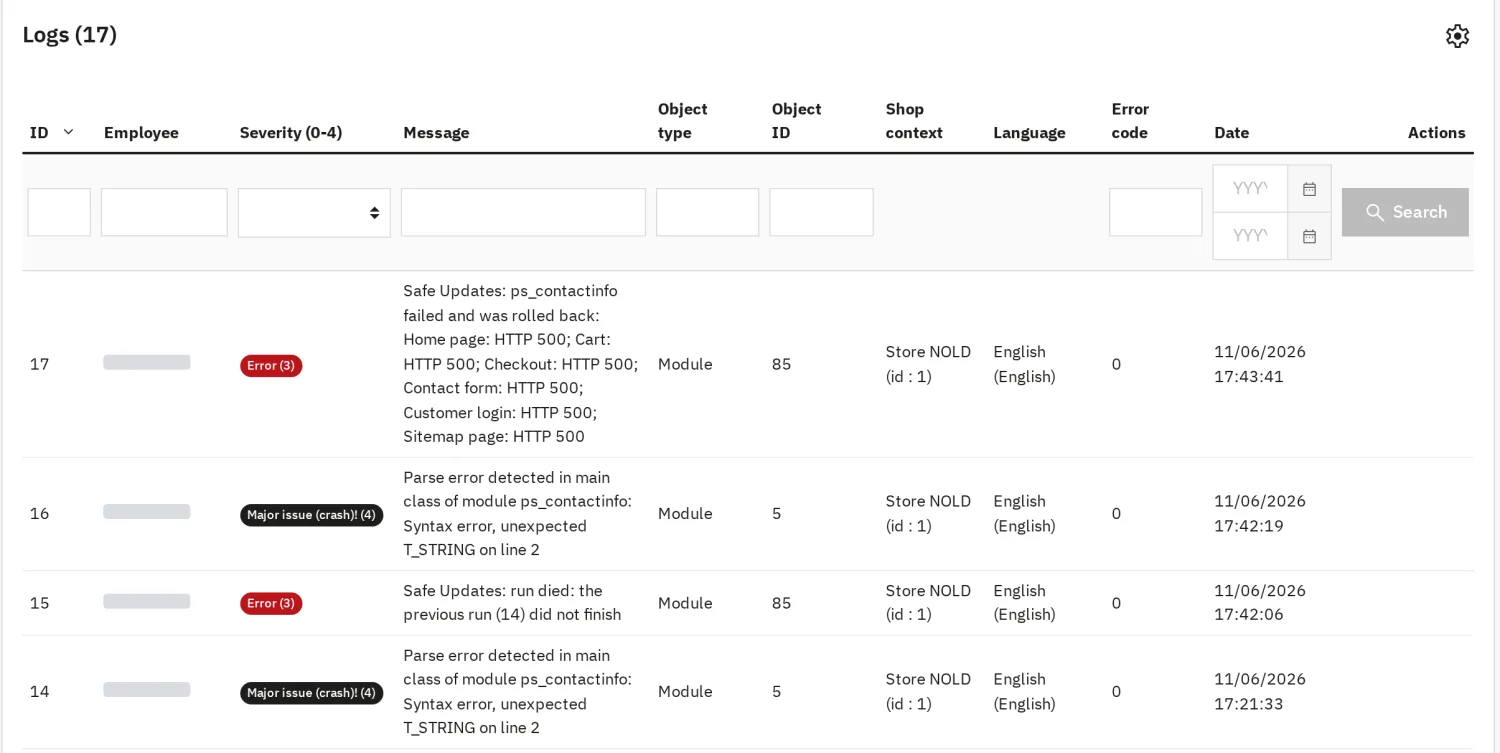
Read the error itself rather than the symptom. It may name a module, a class from the override folder, a PHP version the target doesn't support, or a server limit such as memory or execution time, and each of those leads somewhere different. When the message looks specific to the module, search the repository's issues for the exact text before changing settings.
If an upgrade stops partway, the store can be left in a mixed state, with some parts on the new version and some on the old. Restore your own backup, find the cause on staging and start the upgrade again from the beginning.
The live run after the rehearsal
A rehearsal on staging proves the route works on a copy. It doesn't upgrade the client's store, and the live store kept taking orders while you worked, so copying staging over it would throw away those orders, customer accounts and stock changes. The upgrade has to be run again on live, following the rehearsal notes, with a fresh backup taken immediately before. Agree with your client in advance when that happens, whether the store goes into maintenance mode, and at what point you stop and restore the backup instead of fixing forward.
A restore puts the store back to the moment the backup was taken. Anything that reached the store after that, such as a payment notification that arrived late, has to be checked against the payment provider's records by hand.
Scoping it with your client
I wouldn't price an upgrade before the inventory. The version jump is the same on every store, but the work around it depends on what the store carries, and on a customised store that work is usually most of the job. Tell the client the inventory comes first and the quote follows. If you have just taken the store over and nobody can say what was customised, start with what I do first with an inherited PrestaShop client.
When I take on an upgrade for an agency, I work on staging, not the client's live site unless there is no other option, and I hand over the code plus a short written summary, as set out in how I work with agencies. For an upgrade, that summary lists which customisations were ported, rewritten or removed, and which modules were updated.
Got a brief like this? Tell me the URL, the platform and what's stuck, and I'll come back with scope and a price, NDA first if you want one. Send me a brief.