You find out in two passes. The first is a desk check. List every installed module, sort them by who wrote them, read what each declares about compatibility, and look at the places where its code reaches into PrestaShop's core. Then upgrade a staging copy of the store and work through every module the client's revenue depends on, because only that run shows what breaks.
On an install you inherited, the desk check can turn up modules, overrides and integrations that nobody on the client's side knew existed. I would do it before quoting the upgrade, so the quote covers what is really there.
Start with what is actually installed
The module list in the back office is a starting point, not a complete inventory. I build mine from the database and the file system, then compare the two.
Quoting an upgrade on a store you inherited? I can do the desk check and the staging run for you, white-label, so the quote covers what is really installed. Send me the store's version and module list.
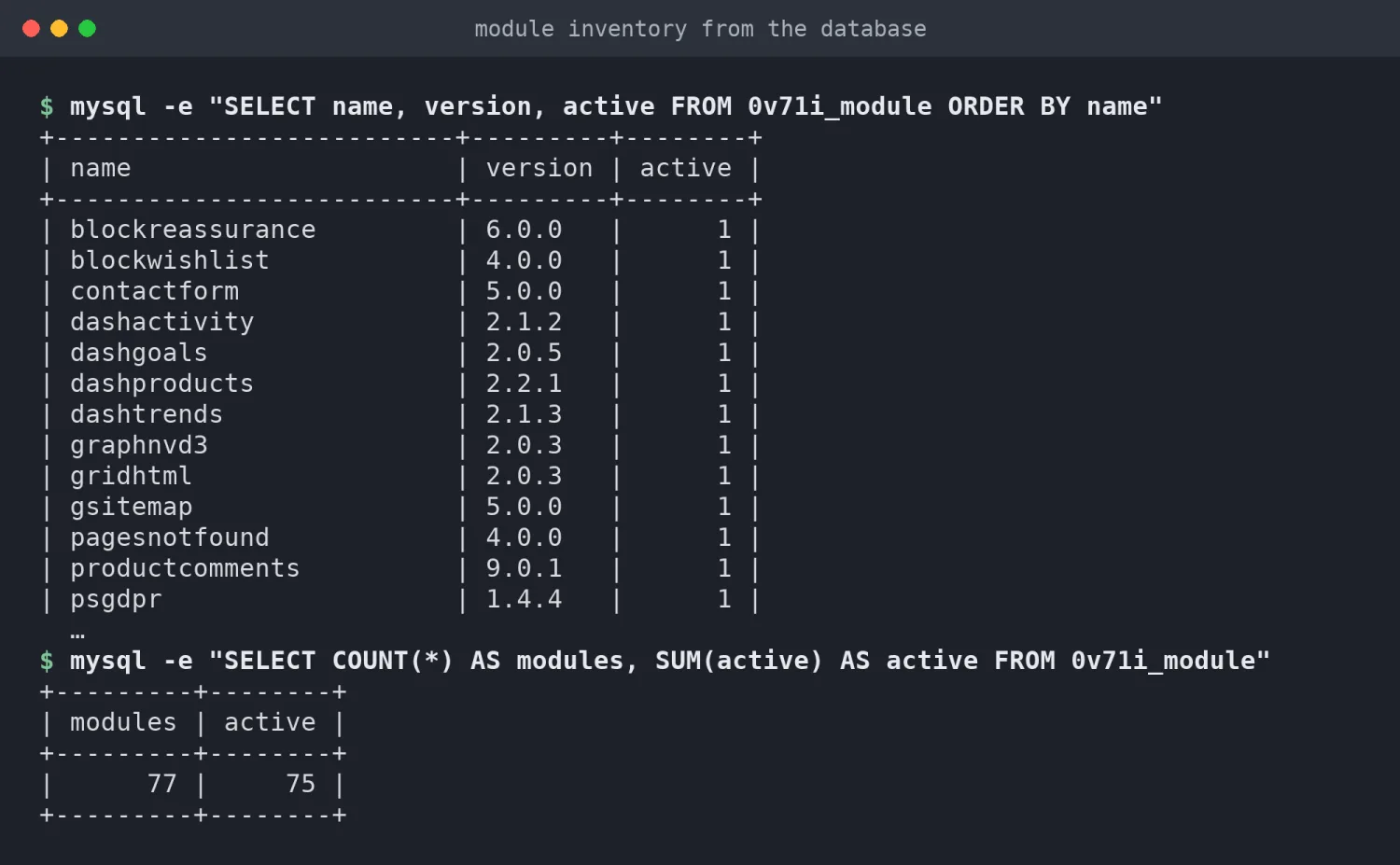
On a default install the module table is called ps_module. The ps_ prefix is often changed, so check the store's database settings first. This query gives you a list to paste into a spreadsheet:
SELECT name, version, active FROM ps_module ORDER BY name;
Then list the folders inside modules/ on disk. A folder with no database entry is usually leftover code. An entry with no folder means someone deleted the module's files by hand, and its hook registrations and settings may still be sitting in the database.
Two more places hold code that behaves like a module without being listed as one:
- The override/ folder at the root of the store. Overrides are files that replace methods in PrestaShop's own classes and controllers. Some were copied there by modules on install, some were written directly by a developer.
- The modules/ folder inside the active theme. Files there replace a module's own templates, so a module that is compatible can still render wrongly because the theme is serving it an old template.
If the store came with no documentation at all, So you've inherited a PrestaShop client. Now what? covers the rest of what to collect before touching anything.
Sort the modules by where they came from
Next to each name in the spreadsheet I note who wrote it: PrestaShop itself, a vendor, or a developer working for this client.
Native modules, the ones that ship with PrestaShop, come from the same project as the platform, so a version for the target release usually exists. I still check each one on staging rather than assume the upgrade brought it up to date, and I note whether the theme overrides its templates.
For modules bought on the PrestaShop Addons marketplace or from a vendor's own site, the question is whether the vendor still exists and has released a version for the target PrestaShop. Then check whether the client can still download it. The licence may have lapsed, or the account may belong to someone who left. If the vendor has gone, I treat the module as custom code with no support behind it.
Custom modules written for this client by a previous developer get the most of my time. Unless someone tested them against a newer PrestaShop, there is no reason to assume they work on it, and they tend to hold the store's particular business rules, such as a special pricing rule or an export to the client's ERP.
Read what each module claims, then check it
A module's main PHP file can declare the PrestaShop versions its author says it supports, through a property called ps_versions_compliancy with a minimum and a maximum. You can pull every declaration in one go from the store's root:
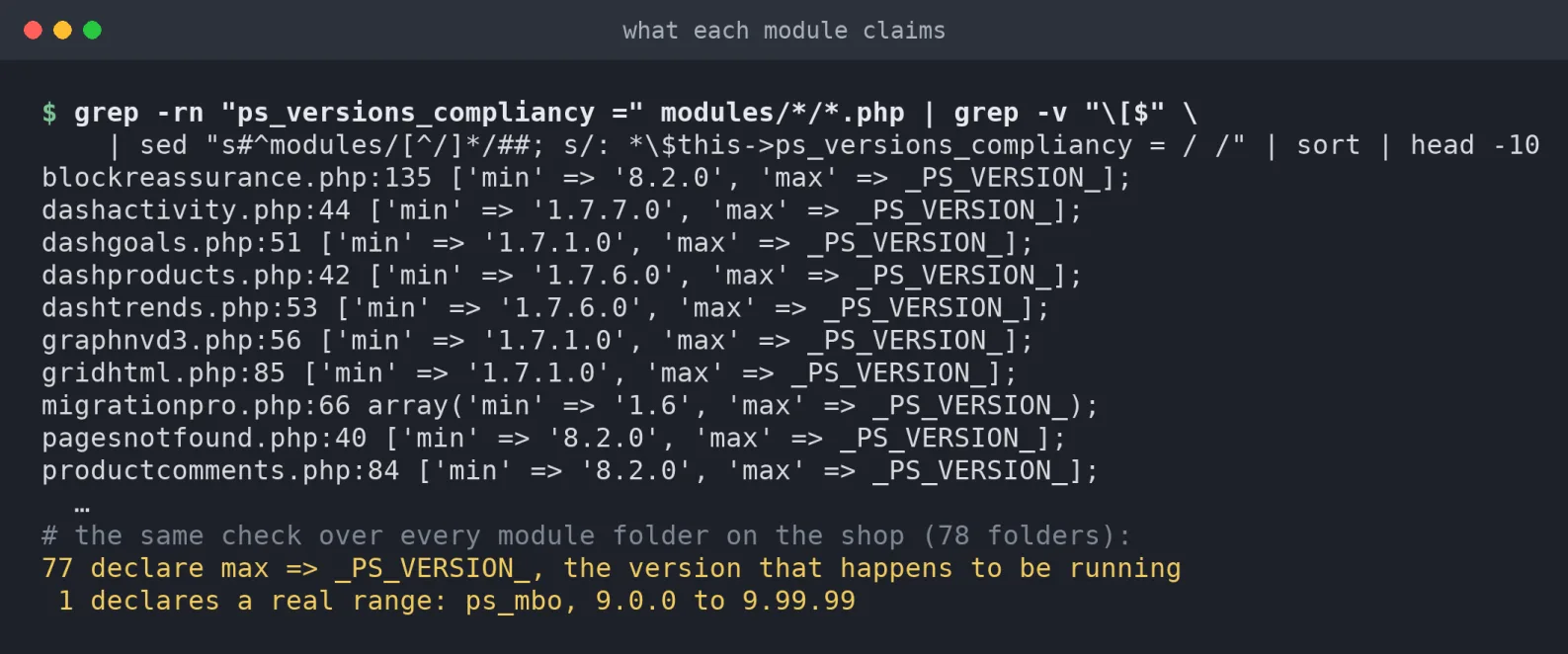
grep -rn "ps_versions_compliancy" modules/ --include=*.php
I use the result as a first sort and treat it as the author's claim rather than proof. A module can set the maximum to _PS_VERSION_, the constant holding whatever version is currently running, which makes it look compatible with any future release without anyone having checked. A module can also declare a narrow range that nobody updated, while the code itself would run fine on the newer version.
For vendor modules, the changelog and product page carry more weight, because they reflect what the vendor says it tested. If a release mentions the target version, that module goes into the pile to update before or during the upgrade.
Look at where the code touches the core
A module breaks where it relies on something in PrestaShop, or in PHP, that changed between the two versions. I go through these in roughly this order.
Each PrestaShop release supports a particular range of PHP versions, so look up the range for the target release in the PrestaShop developer documentation. If the upgrade means moving the server to a newer PHP, old module code that uses removed functions or syntax will throw fatal errors. A PHP compatibility checker reads code for that kind of problem without running it, which makes it useful for a first pass over old custom modules. PHPCompatibility is one, a rule set for PHP_CodeSniffer; check that the release you install covers the PHP version you are moving to. Anything it passes still has to be tested for behaviour on staging.
For overrides, list every file under override/ and diff each overridden method against the same method in the target version's core file, for example override/classes/Cart.php against classes/Cart.php from the new release. A method whose signature changed will usually fail loudly. One whose behaviour changed while the signature stayed the same will keep running the old logic, and you will only find it by testing that feature. Also note any method overridden by more than one module and test that feature specifically on staging.
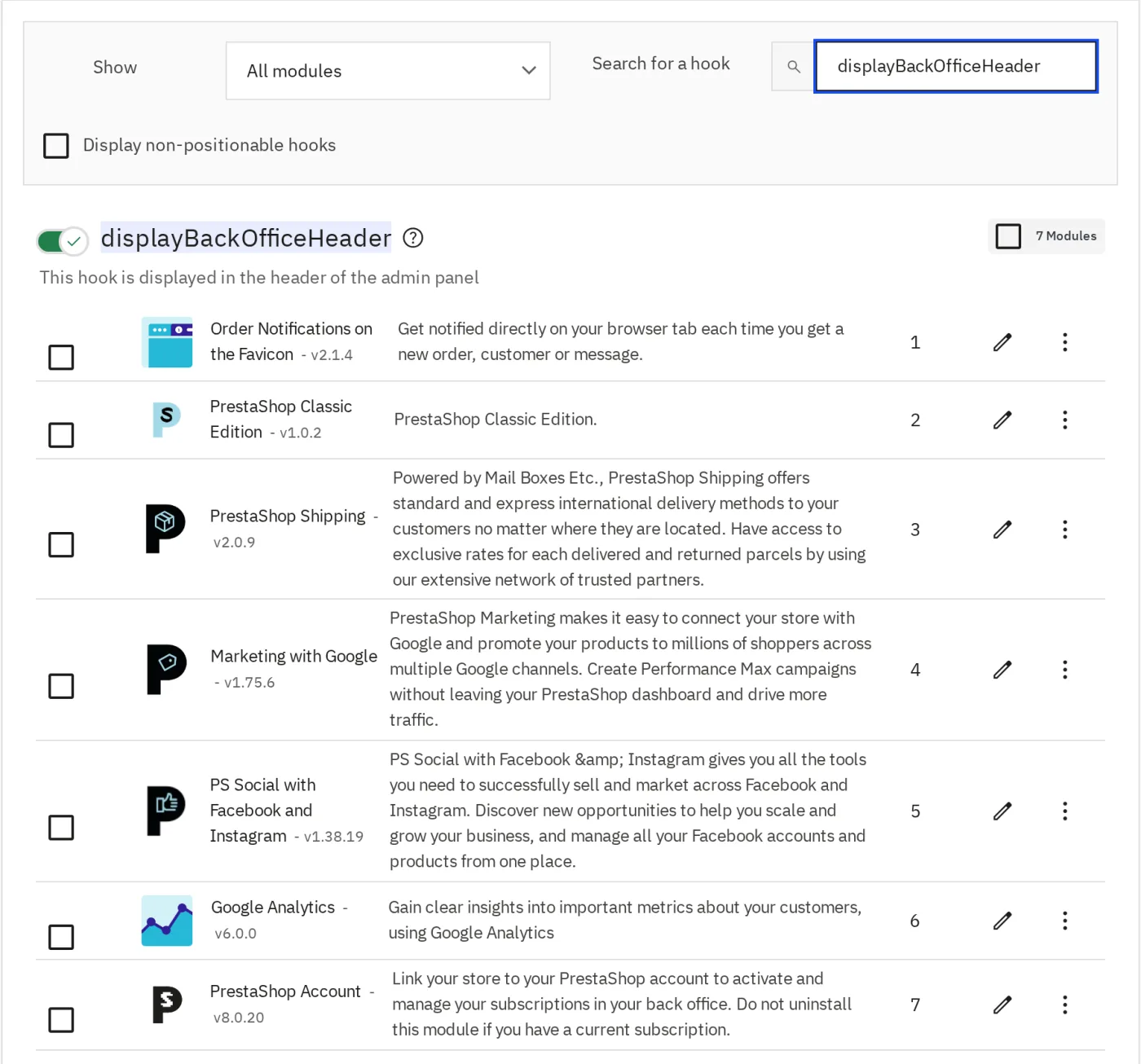
Hooks are the named points in PrestaShop's code where modules attach themselves. This lists which module sits on which hook:
SELECT m.name AS module, h.name AS hook FROM ps_hook_module hm JOIN ps_module m ON m.id_module = hm.id_module JOIN ps_hook h ON h.id_hook = hm.id_hook ORDER BY m.name;
Run the same query on a clean install of the target version and compare. A hook used on the client's store and missing from the clean install is either one the client's own code creates or one the new version no longer calls. In the second case the module can look installed and active on staging while its output is missing, so put each of those modules on the test list by what it is supposed to do on the page.
For theme templates, compare each file in the theme's modules/ folder with the template inside the module's new version. If the module changed what it passes to its template, the theme's copy can render with gaps or errors. A new theme as part of the upgrade means rechecking every one of them.
Run the upgrade on a protected staging copy
The desk check gives you a list of suspects. To confirm them, copy the store's files and database to a separate server or subdomain and run the upgrade there.
That copy holds real customer names, addresses and order history, so protect it like the live store. Put it behind a password, keep it out of search engines, and switch off outgoing email and any connection that pushes orders or stock to the client's ERP or CRM. Turn on PrestaShop's debug mode (the _PS_MODE_DEV_ constant) so errors show instead of blank pages, and keep the PHP error log open. Only do this on the protected copy, because debug output can expose paths and configuration to anyone who can load the page.
PrestaShop maintains its official upgrade module in the autoupgrade repository on GitHub. If you install it manually, use a packaged release from that repository's releases rather than a download of the raw source code or a copy hosted somewhere else.
After the upgrade, work through the store the way customers and the client's staff use it:
- Browse category and product pages, including products with combinations and any custom fields.
- Add to cart, apply a voucher, and check out with every carrier and every payment method, using each payment provider's test mode.
- Check the order confirmation, the customer emails, and the invoice and delivery slip PDFs.
- Open every module's configuration page in the back office and save it once.
- Trigger anything that runs on a schedule (feeds, stock syncs, exports) and check the output.
- Open order, product and customer pages in the back office and look for the fields and buttons modules add there.
Scheduled jobs and API calls usually fail out of sight of the storefront, so check the receiving end as well. If the store talks to an ERP or CRM, test the exchange against a sandbox on the other side, if the other system offers one, and compare what arrived with what the store sent.
When a page breaks and you cannot tell which module is responsible, disable suspects one at a time on staging and reload the page after each. Disabling usually leaves a module's data in place, which uninstalling may not.
Updating or removing a module without losing data
When you update a module manually by putting a newer version's files over the old ones, PrestaShop can run the scripts in that module's upgrade/ folder (files named after version numbers) once it registers that the version on disk is newer than the one recorded in the database. Those scripts can change the module's database tables, and only a backup undoes that. Do it on staging first, then on live with a fresh backup of both files and database.
Uninstalling deserves more caution. What it removes depends on how the module's uninstall() method was written, so read that method, and any SQL file it calls, for DROP TABLE statements before you click anything. If it drops tables, whatever the module stored goes with them: custom product fields, loyalty points, saved quotes, customer data. Disable the module on staging first, export its data, and confirm with the client that nothing they still need lives only in those tables.
What the client should see before you quote
By the end, every module and override sits in one of four places: it survives as is, it needs a vendor update, it needs a code fix, or it should be replaced or removed. Show the client that sorting before you quote. Where a module would cost more to fix than to replace, the client chooses, and the price follows from their choice.
If you hand the work to a subcontractor, agree up front that the upgrade happens on staging, and ask for a short written summary of what changed to come back with the code. That is how I hand this kind of job back, as set out in How I work with agencies.
Sometimes the list shows custom work so tangled that upgrading would cost roughly as much as rebuilding. A platform move then belongs among the options you put to the client, and Planning a PrestaShop to WooCommerce migration: the checklist I use covers what that would involve.
Working through this on a client's store? Send me the URL and what you've found so far, and I'll tell you what I would check first and whether it needs more than a checklist, NDA first if you want one. Send me the URL.